Available in:
Biologics LIMS
This topic shows how to register a new molecule using the graphical user interface. To register molecules in bulk via file import, see
Create Registry Sources.
Other ways to register molecules are to:
Create a Molecule
To add a new molecule to the registry:
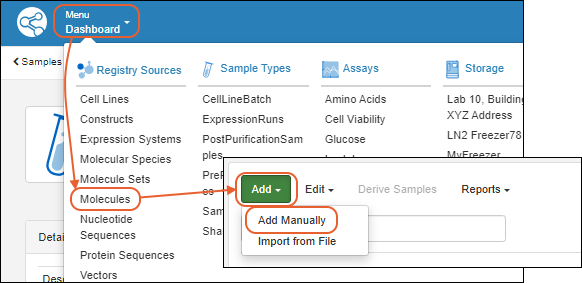
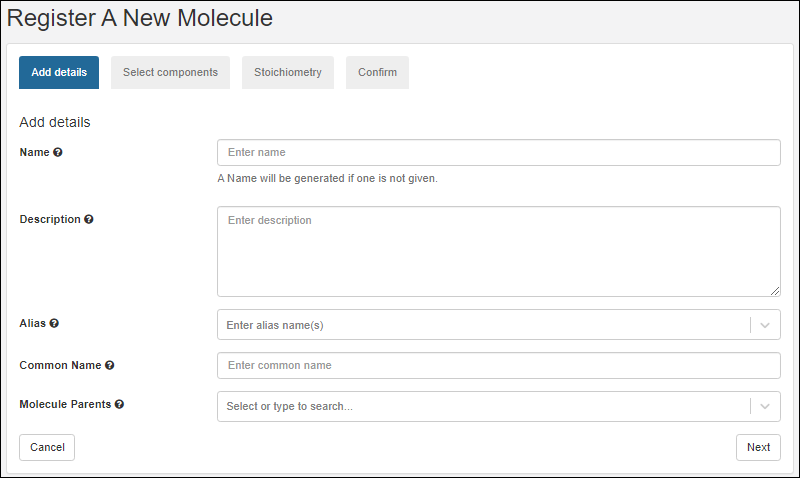
Add Details
On the first tab of the wizard, enter the following:
- Name: Provide a name, or one will be generated for you. Hover to see the naming pattern
- Description: (Optional) A text description of the molecule.
- Alias: (Optional) Alternative names for the molecule.
- Common Name: (Optional) The common name of the molecule, if any.
- Molecule Parents: (Optional) Parent molecules for the new molecule.
Click
Next to continue.
Select Components
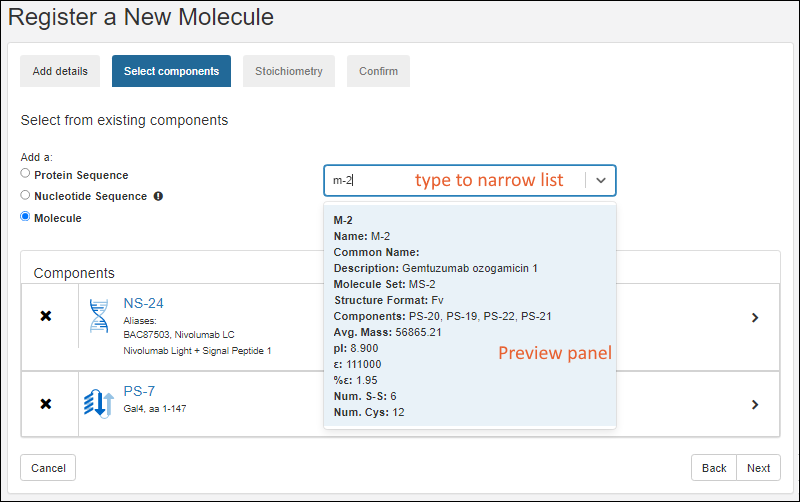
- On the Select components tab, search and select existing components of the new molecule.
- Choose the type of component to search for using the radio buttons: Protein Sequence, Nucleotide Sequence, Molecule, Compound, or Components are unknown.
- Type ahead to narrow the list.
- You will see a details preview panel to assist you.
Supported component types include protein sequences, nucleotide sequences, other molecules, and
compounds. Compounds appear and behave the same way as protein sequence components. This makes it possible to model a wide range of constructs, such as antibody drug conjugates or enzymes that include small molecule components, molecules built directly from a nucleotide sequence, or higher-order complexes composed of other registered molecules.
If a molecule's components aren't yet known, select
Components are unknown instead of adding components. This registers the molecule as unidentified so related work can move forward. See
Identify a Molecule below for how to add components and identify the molecule once they become known.
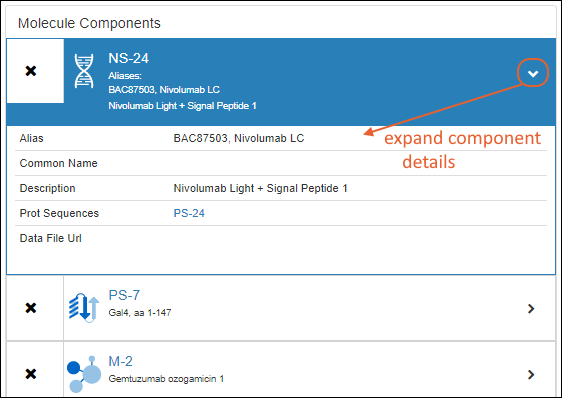
- Once you have added a component, it will be shown as a panel with entity icon. Click the to expand details.
Click
Next to continue.
Stoichiometry
LabKey Biologics will attempt to classify the structure format of the molecule's protein components, if possible. The structure format is based on the component protein chain formats.
On the Stoichiometry pane enter:
- Stoichiometry from each component
- Structure Format: Select a format from the pulldown list. The list is populated from the StructureFormat table.
A warning will be displayed if no antibody regions are detected by the system.
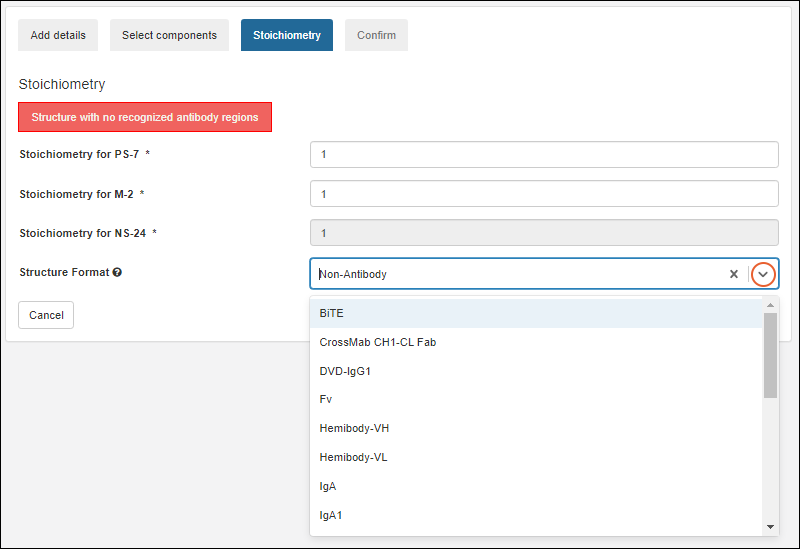
Click
Next to continue.
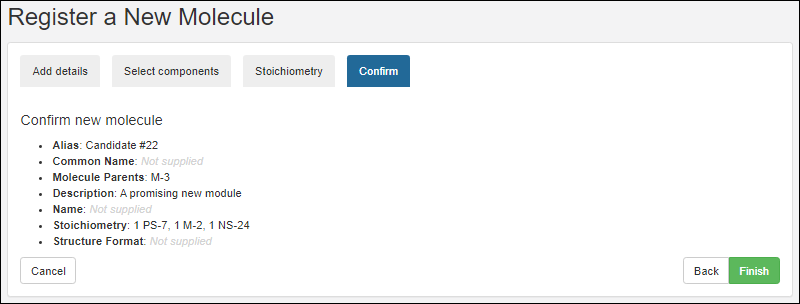
Confirm
On the final tab, confirm the selections and click
Finish to add the molecule to the registry.
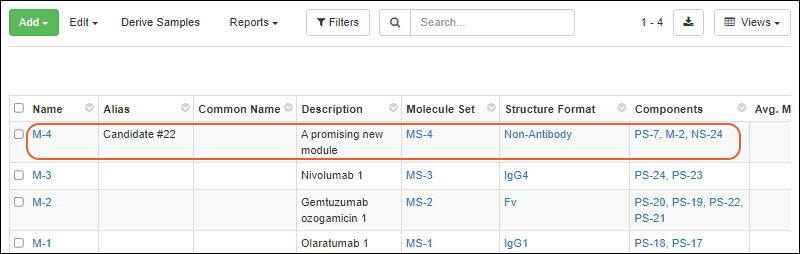
The new molecule will be added to the grid.
Identify a Molecule
A molecule registered with
Components are unknown has no components specified. It is tagged
Unidentified and has an
Identity column, consistent with
unidentifiedSeq. Once the molecule's components have become known, you can identify the molecule:
- Open the molecule's details page.
- In the Molecule Components pane, click Add Components to add the molecule's components now that they are known.
- This launches the identify wizard, which excludes adding molecule parents during this step.
- The wizard performs structure format reconciliation: if information you entered manually (e.g. Structure Format) conflicts with what the classification engine detects for the newly added components, you'll be prompted to resolve the discrepancy before finishing.
- Click Finish. The Unidentified tag is removed and the Identity column is updated.
A molecule can also be identified via the API once its components are known. See
Identify a Molecule via API.
Related Topics

