Available in:
SM Starter
SM Professional
LIMS Starter
LIMS Enterprise
Biologics LIMS
Once you have created the
Sample Type, you can add the samples themselves in several ways. Import an existing inventory spreadsheet, add the samples individually, or enter information in bulk (and then refine it). The Sample Type acts like a table and each individual sample of that type will be a row in the table.
Note: Once you have added some samples, you can select one or more before clicking
More and then selecting one of the
Derive options:
- Aliquot the Selected Sample(s)
- Derive from Selected
- Pool Selected
Learn about these options in the topic:
Aliquots, Derivatives, and Sample Pooling.
Create New Samples
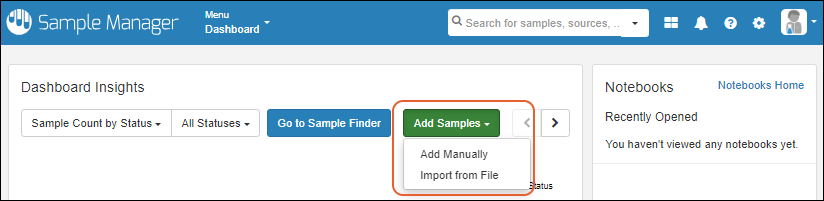
To add new samples, you either navigate to the type of sample you are adding and use the
Add menu above the grid, or go to the home page or the Sample Types dashboard and click
Add Samples. In both places you choose either:
Note that fields of type
File are not included in either import method. Values for these fields must be individually added as described in this topic:
Attach Images and Other Files.
Create Samples From Grid
Using the
Add Manually option gives you several options for entering sample information into the application directly, as opposed to uploading a file of data. You can manually enter values for the fields in a grid format, or use bulk insert and bulk update to streamline entry of similar values.
Learn more in this topic:
Create Samples from Grid
Import Samples From File
The other method for entering samples, particularly useful for a large group or when sample information is available in a spreadsheet already, is to import directly from a file.
Learn more in this topic:
Import Samples from File
Assign Amount and Units
During Sample import, you can provide
Amount and
Units values for each sample.
The Amount and Units fields are enforced
as a pair — both must be provided together or both left blank. This rule applies in all contexts, including file import, grid editing, bulk updates, and manual entry. In the field designer, when you select or deselect one of these fields, the other field will be selected or deselected accordingly. In pop-up editing boxes, these fields appear on the same line, emphasizing that they are paired fields.
Negative values cannot be entered in the Amount field. Users cannot manually specify a negative amount value when inserting or updating. Also, amounts cannot be decremented to a negative value.
When the
Amount Type is configured as Mass or Volume, user-entered amounts are converted to the "base unit" for storage in the database: milligrams (mg) for Mass, milliliters (mL) for Volume. User-entered amounts are also converted for display. For example, if the display unit is mL, and the user enters amount 1 and unit L, then 1000mL will be displayed. Learn more about display values for amounts and units
here.
Original user-entered amounts are retained and can be viewed in the sample Timeline and Audit Log.
Whether a Sample is or is not in freezer storage within the application, you'll be able to see the amount displayed in
an Inventory/Storage Details panel of the sample details.
Sample amount values can be used to generate "low volume" reports in the
Sample Finder.
Also see:
Create a Sample Type
Work with New Samples
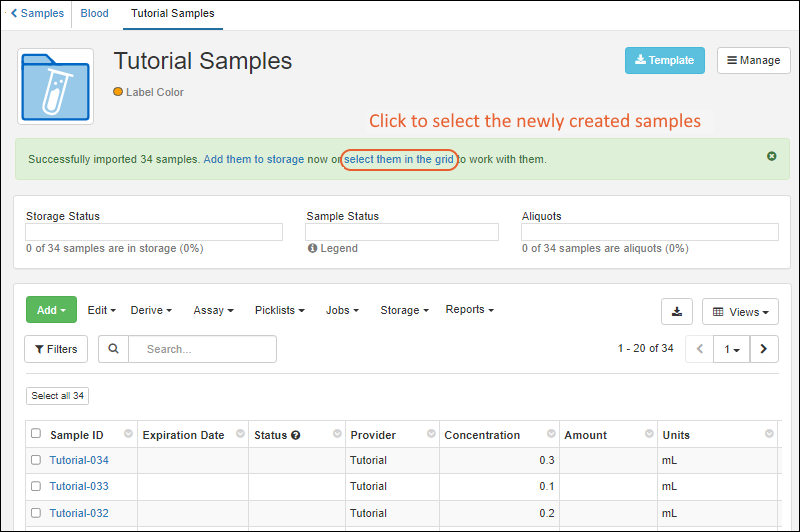
After creating samples, the banner message indicates how many were created. In that message, click
select them in the grid to select this recently created batch for actions like adding them to a picklist or workflow job. You can also click
Add them to storage to immediately
add the new samples to freezer storage locations.
If your creation did not already set the status of these samples, you could select them all in the grid, then use
Edit > Edit in Bulk to set it. Learn more about sample status here:
Learn more about options for working with samples here:
Create Derivatives, Pooled Samples and Aliquots
Once you have created the Samples you want to use as parents, you can also create new samples as derivatives, pooled samples, and aliquots. Learn more in these topics:
Related Topics

