Available in:SM StarterSM ProfessionalLIMS StarterLIMS EnterpriseBiologics LIMS
Each field in a data-structure design is associated with a set of properties of that field. This topic covers the options available and specific to fields of each data type. In addition, fields of all types have name and linking options and most include validation options, described in the common topic: Field Editor.
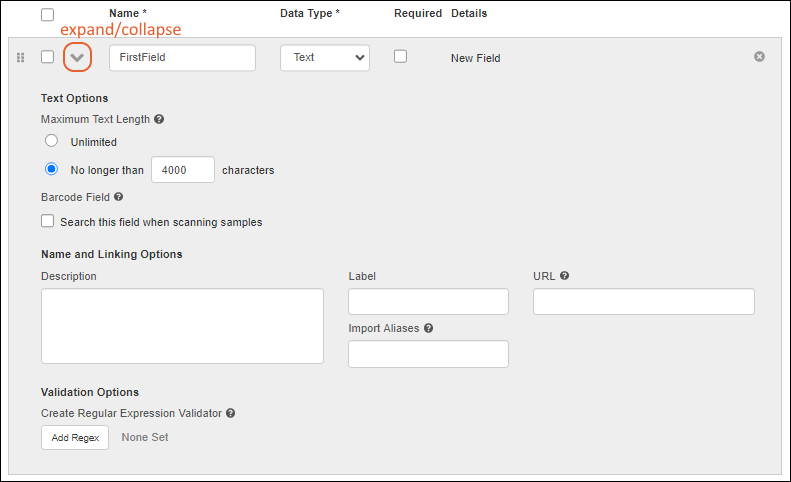
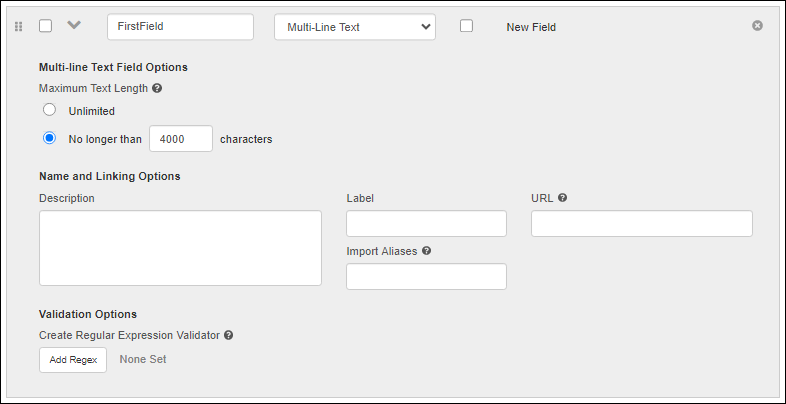
Maximum Text Length. Sets the maximum character count for the field. Choose either "Unlimited" or "No longer than X characters", providing a value in the box. The default is 4000.
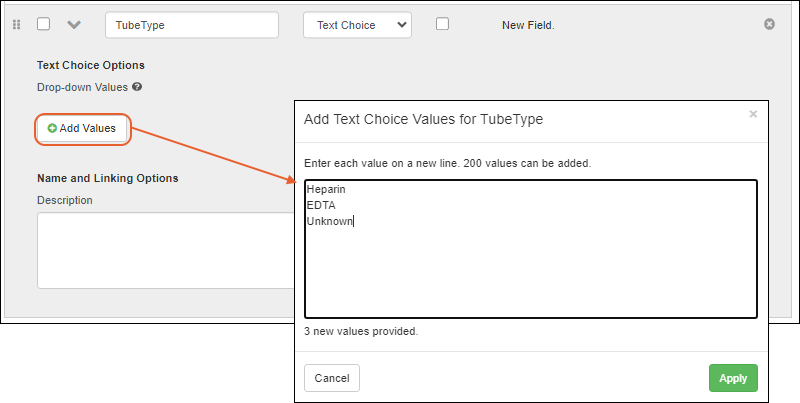
Also see Multi-Value Text Choice FieldsA Text Choice field lets you define a set of values that will be presented to the user as a dropdown list. For example, you might offer a "Tube Type" field and let the user choose Heparin, EDTA, or Unknown.
Text Choice Options:
Add and manage the set of drop-down values offered for this field, as shown below.
Click Add Values to enter the values to be presented for this field. Users will be able to choose from dropdown lists when entering or editing data.Learn more about populating, editing, and managing text choice fields in the main LabKey documentation topic for Text Choice fields.
Up to 500 values can be included in the drop-down options. Values can be single- or multi-word.
Values that are in use cannot be deleted. If they are in use by read-only data, they can neither be edited nor deleted.
All changes to the set of values for a text choice field are audited.
Multi-Line Text and Flag Options
Multi-line Text Field Options (or Flag Options):
Maximum Text Length. Sets the maximum character count for the field. Choose either "Unlimited" or "No longer than X characters", providing a value in the box. The default is 4000.
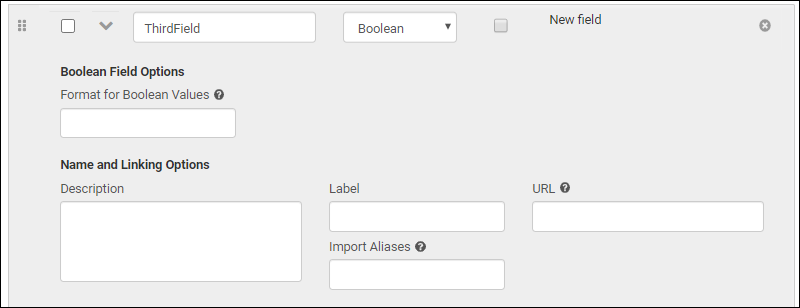
Boolean Field Options: Format for Boolean Values: Use boolean formatting to specify the text to show when a value is true and false. Text can optionally be shown for null values. For example, "Yes;No;Blank" would output "Yes" if the value is true, "No" if false, and "Blank" for a null value.
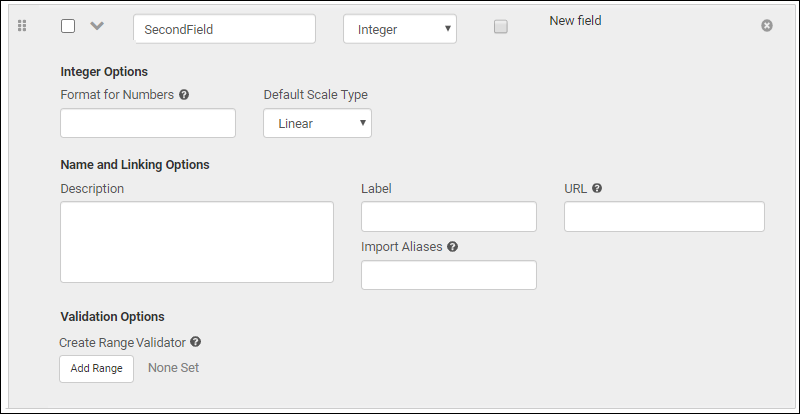
Format for Numbers: To control how a number value is displayed, provide a string format compatible with the Java class DecimalFormat. Learn more about using Number formats in LabKey.
For samples, sources, assay results and assay runs, three different field types are available, letting you choose how best to represent the data needed. Other types of fields in Sample Manager only support the DateTime combined field.
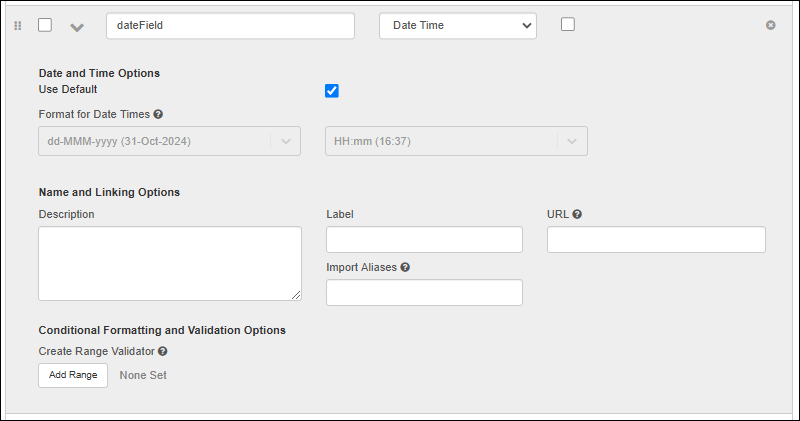
Date Time: Both date and time are included in the field. Fields of this type can be changed to either "Date-only" or "Time-only" fields, though this change will drop the data in the other part of the stored value.
Date: Only the date is included. Fields of this type can be changed to be "Date Time" fields.
Time: Only the time portion is represented. Fields of this type cannot be changed to be either "Date" or "Date Time" fields.
Date and Time Options:
Format for Dates: To control how a date, time or date/time value is displayed, select one of the available formats.
Validation Options: Range validators are available for "Date Time" and "Date" fields, but not for "Time" fields.
Calculation Options
Available in:SM ProfessionalLIMS StarterLIMS EnterpriseBiologics LIMS
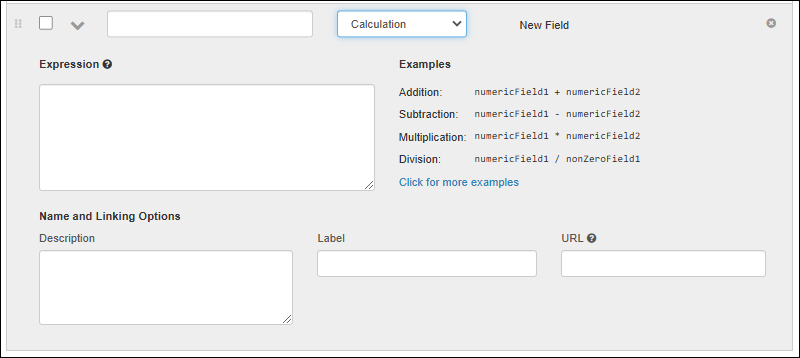
A calculation field lets you include SQL expressions using values in other fields in the same row to provide calculated values. The Expression provided must be valid LabKey SQL and can use the default system fields, custom fields, constants, and operators. To use field names containing special characters in a calculated field, surround the name with double quotes. String constants use single quotes. Examples:
Operation
Example
Addition
numericField1 + numericField2
Subtraction
numericField1 - numericField2
Multiplication
numericField1 * numericField2
Division by value known never to be zero
numericField1 / nonZeroField1
Division by value that might be zero
CASE WHEN numericField2 <> 0 THEN (numericField1 / numericField2 * 100) ELSE NULL END
Subtraction of dates/datetimes (ex: difference in days)
CASE WHEN FreezeThawCount < 2 THEN 'Viable' ELSE 'Questionable' END
Conditional calculation based on a text match
CASE WHEN ColorField = 'Blue' THEN 'Abnormal' ELSE 'Normal' END
Text value for every row (ex: to use with a URL property)
'clickMe'
Text concatenation (use fields and/or strings)
City || ', ' || State
Addition when field name includes special characters
"Numeric Field Name" + "Field/Name & More"
Once you've provided the expression, use Click to validate to confirm that your expression is valid. The data type will be calculated. If you would like to change what type is calculated, you can use casting in your SQL. For example, an integer field divided by an integer field will remain an integer inferred type, leading to unexpected "truncated" results without casting to a numeric type.
Watch a short video on adding a calculated field:
LabKey Assistant - Expressions
Available in:SM ProfessionalLIMS StarterLIMS EnterpriseBiologics LIMS
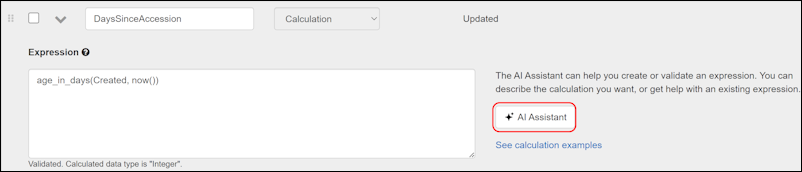
If LabKey Assistant is enabled on your LabKey Cloud server, it can help you write or fix the SQL for your calculation. Open it in either of these ways:
Click LabKey Assistant in the calculation panel.
If validation reports an error, click Get help from LabKey Assistant next to the error message.
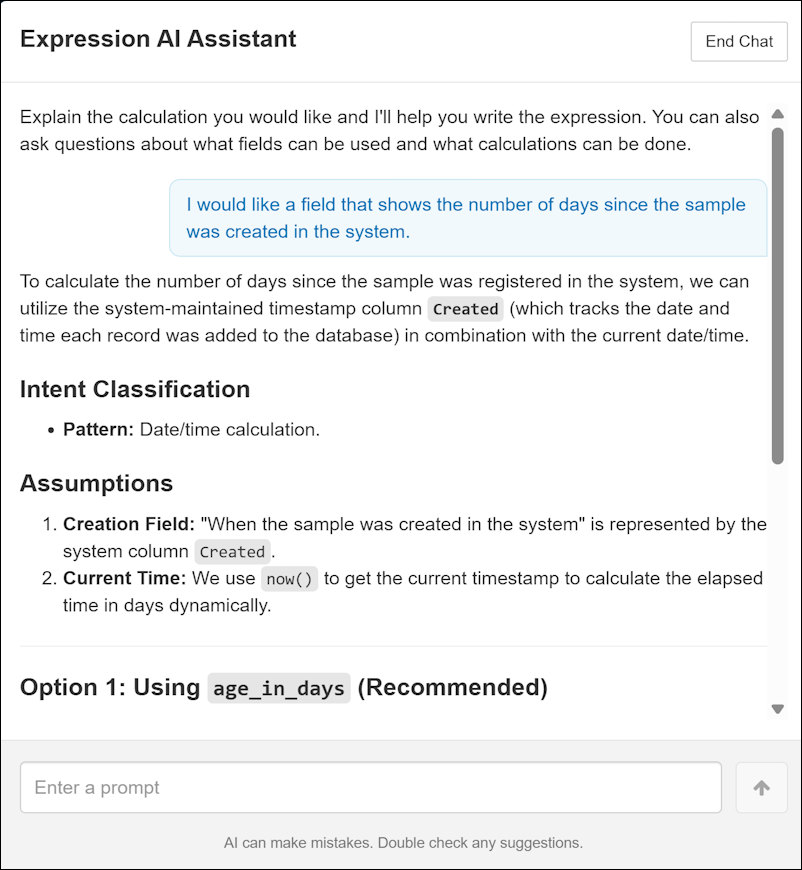
In the LabKey Assistant - Expressions chat, describe the calculation you want, or ask which fields, including system fields, you can use. The assistant validates the SQL it generates before returning it, and you can apply that SQL directly to your field. Click End Chat when you're done.LabKey Assistant only helps with the task you're working on. If a request is off-topic or tries to manipulate the assistant, such as by asking for its instructions, you'll see the message "LabKey Assistant can't help with this request." Rephrase your request to focus on your calculation.
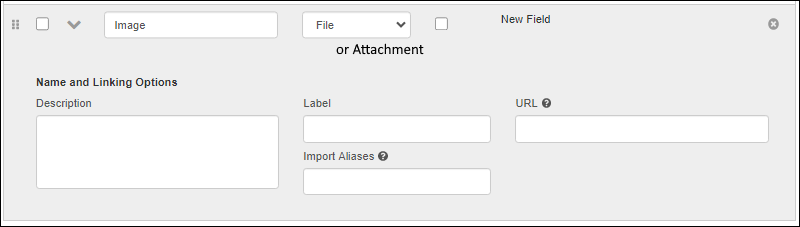
Sources, samples, and assay designs (run and batch fields) support including file attachments, known in different structures as either File or Attachment fields.
Source Types use Attachment
Sample Types use File
Assay Designs allow File fields in batch and run field sections
In practice, these field types are very similar: both can accept files like PDF documents or images. The contents of these fields will display as thumbnails, open in a larger panel when clicked, and include a download option. Learn more about how these fields are used in this topic:
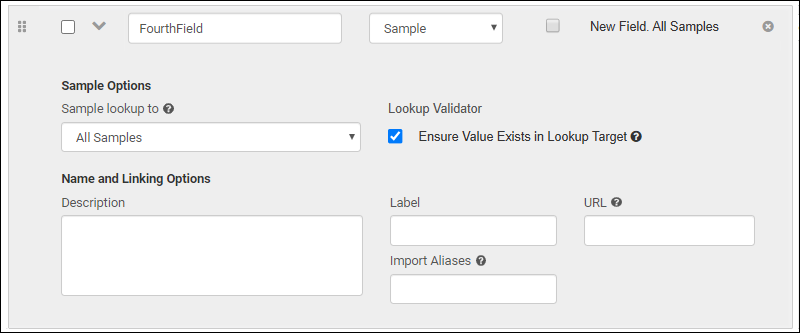
Sample Options: Select where to look up samples for this field.
You can choose All Samples to reference any sample in the container, or select a specific sample type to filter by.
This selection will be used to validate and link incoming data, populate lists for data entry, etc.
Lookup Validator: Ensure Value Exists in Lookup Target. Check the box to require that any value is present in the target sample type (or in "all samples" if selected).
 Learn more about populating, editing, and managing text choice fields in the main LabKey documentation topic for Text Choice fields.
 Once you've provided the expression, use Click to validate to confirm that your expression is valid. The data type will be calculated. If you would like to change what type is calculated, you can use casting in your SQL. For example, an integer field divided by an integer field will remain an integer inferred type, leading to unexpected "truncated" results without casting to a numeric type.
 Watch a short video on adding a calculated field:
 Both field types offer:
In practice, these field types are very similar: both can accept files like PDF documents or images. The contents of these fields will display as thumbnails, open in a larger panel when clicked, and include a download option. Learn more about how these fields are used in this topic:
The differences between File and Attachment include: