Available in:
Biologics LIMS
Every Registry Source in Biologics LIMS has a details page that brings together its properties, lineage, samples, assays, and jobs, along with the other registry entities it's connected to. This topic describes the tabs and panels on that page.
View Registry Source Details
Select a Registry Source Type from the main menu to see a grid of all its entities. Click an entity's name to open its details page.
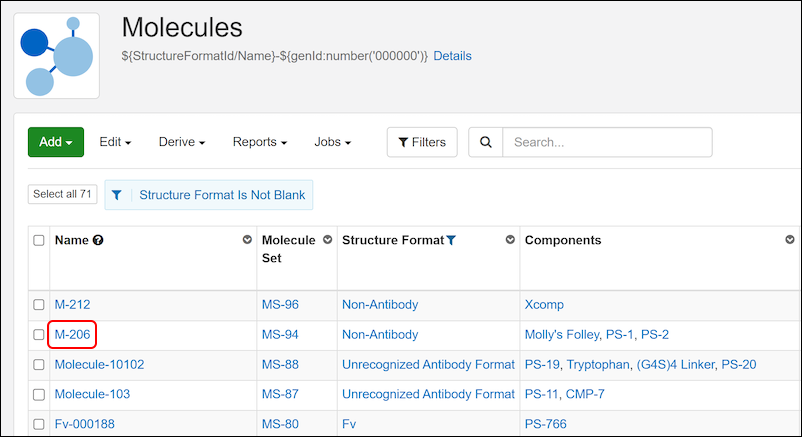
As for Sources in Sample Manager, tabs provide more detail. Learn more in
the Sample Manager documentation for Sources.
- Overview: Panels for details, samples, related entities (for built in Registry Source Types), notebooks, and parent sources. Learn more below.
- Lineage: See the lineage in graph or grid format.
- Samples: Contains a grid of all samples 'descended' from this source.
- Assays: See all assay data available for samples 'descended' from this source.
- Jobs: A combined grid of jobs involving this source and any samples 'descended' from it. Molecular Species and Molecule Sets do not participate in workflow jobs, so this tab is not shown for those Registry Source Types.
In Biologics LIMS, additional tabs may be included such as:
Overview Tab
The
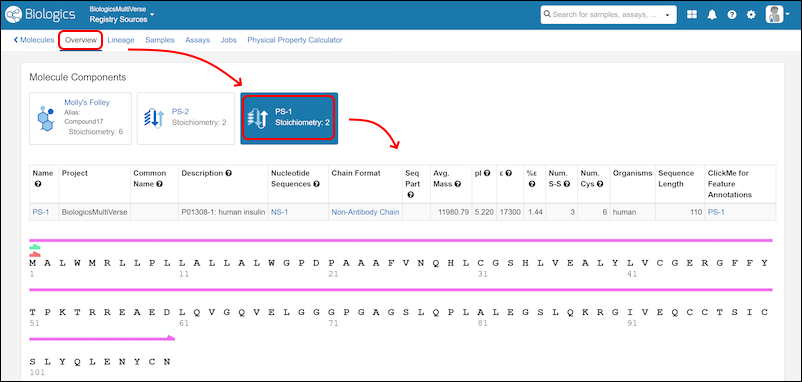
Overview tab shows an entity's details alongside the entities it's connected to, so you can review its related entities and components without opening each one.
Related Entities
The
Related Entities panel spans the full width of the page, with one tab for each type of related entity. Each tab shows the entity type's icon and a count. Tabs with a count of 0 are disabled.
- Click a tab to expand a grid of the related entities. The grid supports sorting, filtering, paging, and custom grid views. Your sort, filter, and page size are kept when you switch tabs.
- Click the selected tab again to collapse it.
Component and Sequence Panels
Some Registry Source Types add a panel that lists an entity's components or related sequences directly on the overview page.
- Molecules and Molecular Species. The Molecule Components panel has one tab per component. Each tab shows the component's icon, its linked name, and its stoichiometry, plus an "Unidentified" label where one applies.
- Constructs. The Sequences panel has one tab for each insert sequence, one for the complete sequence, and one for the vector.
- The Vector tab shows the vector's details and, if the vector has a nucleotide sequence, that sequence too.
- Nucleotide Sequences. The Protein Sequences panel lists each protein encoded by the nucleotide sequence.
- Protein Sequences. The Nucleotide Sequences panel lists the nucleotide sequences that encode the protein.
Related Topics

