Available in:
SM Starter
SM Professional
LIMS Starter
LIMS Enterprise
Biologics LIMS
A
Sample Color lets you color-code individual samples and aliquots independent of their Sample Type, so they're easy to pick out in grids, storage views, and dashboards.
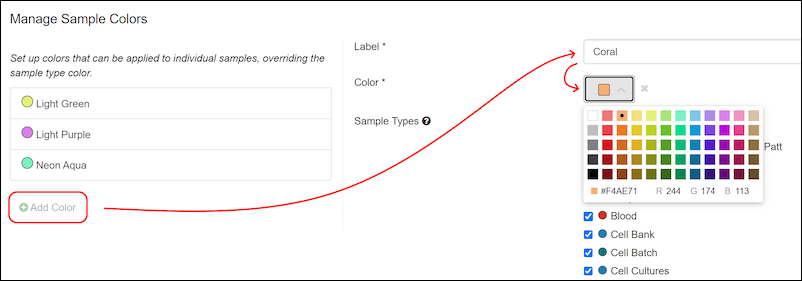
Manage Sample Colors
An administrator defines the set of colors available across the application from
> Application Settings.
To add a color, click
Add Color and give each a
Name and pick a
Color.
Select the sample types where the color will be available.
Archive a color you no longer want offered; samples already using it, and file imports referencing it, are unaffected.
Enable the subset of colors available for a given Sample Type in its
designer.
If a sample's Sample Color isn't set, the sample type color is shown instead.
Assign Sample Color
Sample color can be set in the following ways:
- at sample creation
- during file import (by the color's Name)
- when editing a single sample
- in a bulk update
- via the LabKey APIs.
Aliquots don't inherit their parent's Sample Color.
View Sample Color
Sample color appears in the following places:
- a column in grids
- editable grids
- bulk edit
- the sample details page
Sample color can be added as an
identifying field.
In storage, sample color is shown in the box/plate/tube rack layout, the storage map, and its export. Popups that list multiple samples by location, such as adding to or moving in storage, checking in/out, or removing from storage, group them by sample color and sample type.
On the main dashboard, select
Sample Count by Sample Color from the
Dashboard Insights menu to see sample counts shaded by color instead of type.
Related Topics

