Before running the actual billing cycle, you can use reports and queries to preview what the charges will be. Identifying and correcting discrepancies or missed charges before sending invoices will avoid problems since the actual billing run can be performed only once.
Preview Billing Reports
Prior to performing the actual billing run, which generally can only be executed once for a given time period, it is good practice to preview the run to confirm the charges will be correct. This option may appear under different names by center such as:
Click the desired report from the
Current Billing Period / Adjustments section of the
Finance web part. The specific reports available will vary by center and are listed on your client support portal.
View Billing Cost Queries
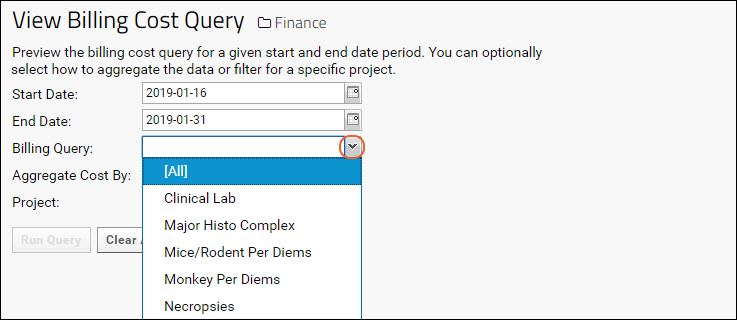
For example, a
View Billing Cost Queries report might request the date bounds, project, method of aggregation, then offer a specific set of Billing Queries on a pulldown menu.
Enter Charges
Typically, charges are based on activities that are logged in the EHR folder. Prior to billing, the system also can offer the option to enter additional charges that do not already appear on the prebilling run.
To enter additional charges, use the appropriately named link from the
Finance web part. Depending on the system and type of charge, the name of the link and location on the web part might differ. In some cases, these links will navigate the user to the EHR folder.
For example, a system might offer the ability to enter charges either with or without specific animal IDs. Each link would open the form with the necessary fields. Another with a simpler set of possible additional charges might allow import of bulk data into a miscellaneous charges form.
In general, once you have opened a page for entering charges, you can
Add or
Add Batch to specify the service, project, cost, category, quantity, and other data needed.
Learn more about entering data in the topic:
EHR: Data Entry.
Related Topics

