The shared EHR_Billing module, usually in concert with a center-specific additional xxPRC_Billing module, provides a system for automating the billing and/or invoicing for both internal and external customers of a primate research center. While each implementation differs in the requirements and actions available, some common features and processes are covered in these topics.
Many line items in the billing system are fed automatically by data from LabKey's
Electronic Health Record (EHR) system, such as per-diem fees based on the animals' project assignment and housing, and blood draws. These are augmented by additional charges that are entered separately for lab services, supplies, personnel time, and more.
This topic covers:
Additional steps in the process are covered in these topics:
Set Up the Billing System
- The EHR system is set up and installed separately. The project and folder where this system is used to track the health records and data about procedures completed used by the billing system is referred to here as "the EHR folder."
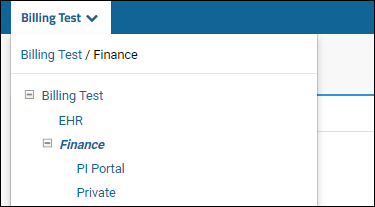
- The specific folder layout of your billing and finance system may vary. The simplest option is to have the "EHR" folder have a peer folder named "Finance". This allows you to separately control the permissions in each.
An alternative used in some centers is to add two subfolders, "PI Portal" and "Private" within the "Finance" folder. The private folder for the use of the billing group and the PI Portal folder for
selectively granting access to investigators if needed. This option is shown here:
- To enable the module and billing system, create your new folder.
- Go to > Folder > Management > Folder Type.
- Check the boxes for both "EHR_Billing" and your center-specific billing module if applicable.
- Click Update Folder.
- Some centers have custom web parts to enable. Review the documentation on your client support portal for details. A typical example would be a <Center-name> Finance web part described below.
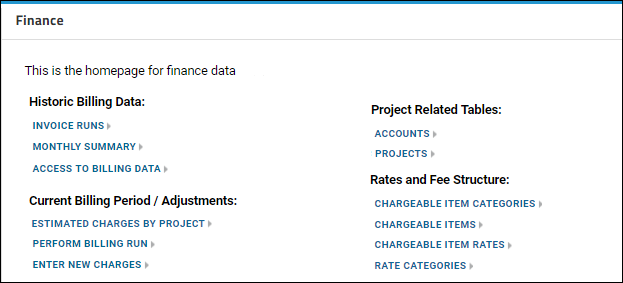
The
Finance web part contains a list of links to common queries and for performing various actions. The specific categories and options vary by center. When added to a page, they are typically named according to the specific center on the
web part menu. This screenshot shows a subset of representative links; each center's specific web part will differ.
To see the tables underlying this system, use
> Developer Links > Schema Browser and select the ehr_billing schema as well as your center-specific variant.
Configure Notifications
The
Billing Notification report is designed to provide a daily summary of current or projected charges since the last invoice date. It will summarize the total dollar amount, as well as flag suspicious or incomplete items.
To configure who receives it, go to the
Overview tab in your
EHR folder,
which is typically not in the same folder as the billing system. Click
EHR Administration, then
Notification Admin. If a
Billing Notification is available for your center, it will be listed and can be enabled and managed as
other EHR system notifications. Note that notifications must be
enabled at the site level before they can be used in any project or folder.
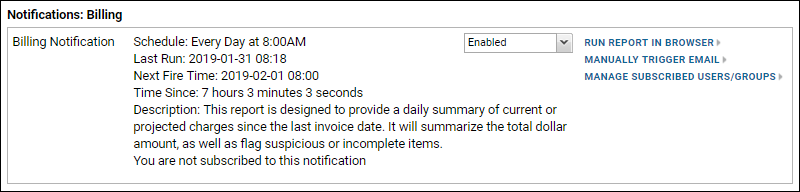
The schedule for notifications is described in the UI. Select
Enabled to enable it. Options:
- Run Report In Browser: see what the next notification will include.
- Manually Trigger Email: send the report now to subscribed users.
- Manage Subscribed Users/Groups: See who is subscribed and add users or groups as needed.
Refer to your center's documentation for specifics of what is included in your report. Sections included generally summarize projected charges and highlight anything that might warrant further attention prior to the billing run.
Center-Specific Documentation
To see the specific links and naming options supported for your specific center using EHR, visit your LabKey client support portal and review the documentation available there.
To find your portal, click the logo in the top left of this page to go to the LabKey Support home page. You'll see your project portals listed at the bottom of the page
(when you are logged in). Click the project icon, then look for EHR topics in the
Documentation web part.
Related Topics

