The site or project
Theme is a way to control the overall look and feel of your web site with a custom color palette. You can set a site wide theme, and individual projects can also choose a different theme to override the site one.
Select a Site Theme
To select a web theme at the site level:
- Select > Site > Admin Console.
- Under Configuration, click Look and Feel Settings.
- Select a Theme from the dropdown.
- Click Save.
Theme Options
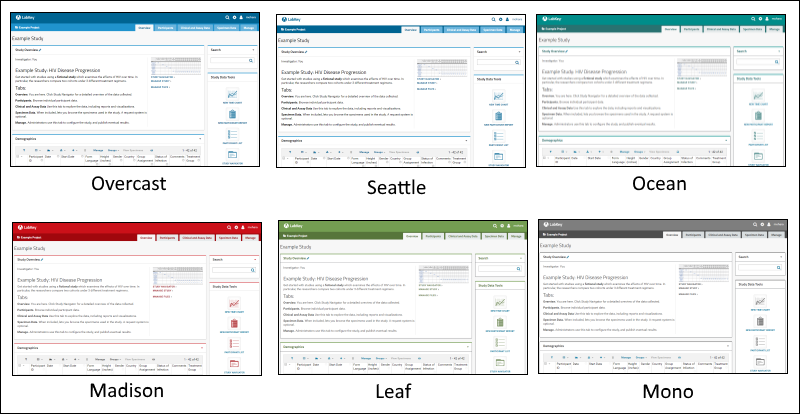
Theme options include:
- Harvest: Orange
- Leaf: Green
- Madison: Red
- Mono: Gray
- Ocean: Teal
- Overcast: Blue
- Seattle: Blue with white header
- Sky: Lighter blue
The Harvest and Leaf themes show the header logo in black, for better contrast.
Themes in LabKey Applications
The theme also sets the color of the application header in LabKey applications, such as Sample Manager, LabKey LIMS, and Biologics LIMS. Giving each environment its own theme, such as one for your staging server and another for production, lets users tell them apart at a glance.
An application follows the theme of the site, or of its project if the project overrides the site theme. Only the header changes; the rest of the application looks the same under every theme. The Overcast, Seattle, and Sky themes leave the application header in its default colors.
Select a Project Theme
To select a project theme different from the site default:
- Select > Folder > Project Settings.
- The Properties tab is open by default.
- Uncheck Inherited for the Theme row.
- Select a Theme from the dropdown.
- Click Save.
Related Topics

