Labs that share mass spec instruments across multiple projects need a way to reserve time on those instruments in advance, and track who used them so the usage can be billed to the correct budget. This topic describes Panorama's instrument scheduling and billing feature, which lets users reserve time on an instrument for a project, and lets administrators report on and invoice that usage.
This complements the
Instrument Utilization Calendar, which shows a heat map of an instrument's historical usage based on imported Skyline data. Where that heat map shows how an instrument has been used in the past, instrument scheduling lets you reserve its time going forward.
Permissions
Three levels of access are available:
- Folder Administrator: Full access. Can create and edit instruments, projects, payment methods, and researcher assignments; see and manage all projects; and generate invoices.
- Editor: Can do almost everything an administrator can, except create new payment methods. This is the role most lab members will have. Editors can see that time is booked on the instrument calendar for every project, but only see full project details for projects they've been added to as a researcher.
- External Collaborator: Assign both the Submitter and Reader roles to give an external collaborator this level of access. It's equivalent to an Editor, except external collaborators cannot create new projects.
Instrument Scheduling Admin
Folder administrators should start with the
Instrument Scheduling Admin web part, which provides links for setting up instruments, projects, and payment methods.
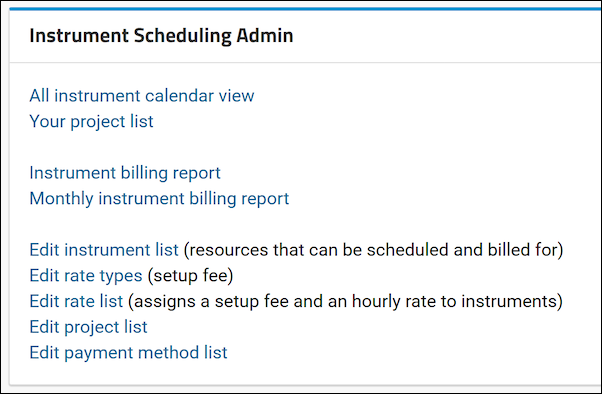
Add this web part to a Panorama folder to get started. From here, administrators can:
- Create and edit instruments
- Create and edit payment methods
- Create and edit projects
- Assign researchers to projects
Note that because this feature was built by migrating an existing lab's scheduling and billing system into Panorama, some fields you'll see in this rudimentary setup UI reflect that lab's own terminology (such as "UW Budget Number") and may not apply to your institution.
Projects and Payment Methods
A
project groups instrument scheduling and billing together for a piece of work, and has one or more
payment methods associated with it for billing.
Users can see a list of their own projects (folder administrators see all projects) in the
Your Projects web part.
Click
View to see the details of a project, including its payment methods and a summary of charges to date. From here you can also:
- Edit the project
- Add a payment method
- Add other users as researchers on the project
- Schedule instrument time for the project
Schedule Instrument Time
From a project's details page, click
Schedule Instrument Time to reserve time on an instrument.
- Project: Defaults to the project you came from, but can be changed.
- Instrument: Choose from the active instruments. Choosing a different instrument refreshes the calendar to show that instrument's schedule. Time already scheduled for other projects is shown in gray; time for the current project is shown in color.
- Instrument Operator: Choose from users with access to the current folder.
- Payment Method(s): Choose one or more active payment methods, allocating a percentage of the cost to each. If the project has a default payment method, it's preselected.
Click a day, or drag across multiple days, on the calendar to open a dialog for adding the reservation. The start must be before the end, and it cannot overlap with any other scheduled time for that instrument. A confirmation dialog shows the calculated cost before the reservation is saved.
Hover over a scheduled event to see its details. If you're not a folder administrator and haven't been added to the project, you'll only see the project ID, title, PI, and the start/end times. If you're an administrator or belong to the project, you can also edit or delete the reservation from there, or jump to the project's details page.
Instrument Calendar
All users can see a combined calendar of scheduling for every instrument. Active and retired instruments are listed separately, and either can be toggled to show or hide its schedule. Overlapping reservations are stacked so you can see them all.
As on the
Schedule Instrument Time page, hovering over a reservation shows limited or full details depending on your access to the project. You can also start scheduling a new reservation from the bottom of this page.
Cost Reporting and Invoicing
Folder administrators have access to cost reporting for instrument scheduling.
- Set a start and end date (defaulting to the first and last day of the current month), and optionally filter to a single project.
- Choose to summarize by project, instrument, and payment method.
- View the results in a grid, which can be exported like any other LabKey grid.
If a scheduled reservation spans outside the selected date range, only the portion of time within the range is included.
When a billing period is ready to be closed out, administrators can lock the entries for that time period so they can no longer be edited. Locking is separate from exporting — it doesn't produce a file on its own, it just marks the entries as billed.
Any user with access to a project can see a report of all of its scheduled instrument time from the project's details page.
Related Topics

