This topic provides guidance and example wikis to help administrators customize their LabKey installation to assist end users. Providing assistance and customized links on the home page can make it easier for your users to get started. Use the examples here to explore some of the options, and then decide what your users will find most helpful and make customizations.
Resources
Download and unzip this bundle. It contains the png image files used in these examples. You can skip this download and create your own images instead.
Navigation Home Page
If you will have users who only use your LabKey installation to access certain resources, but will not need full LabKey training, you can make it easier for them by adding a bit of guidance to the home page of your server.
The default home page provided with your server offers links to community resources. Adding a section above this general information can help users who only need to log in and access a specific folder.
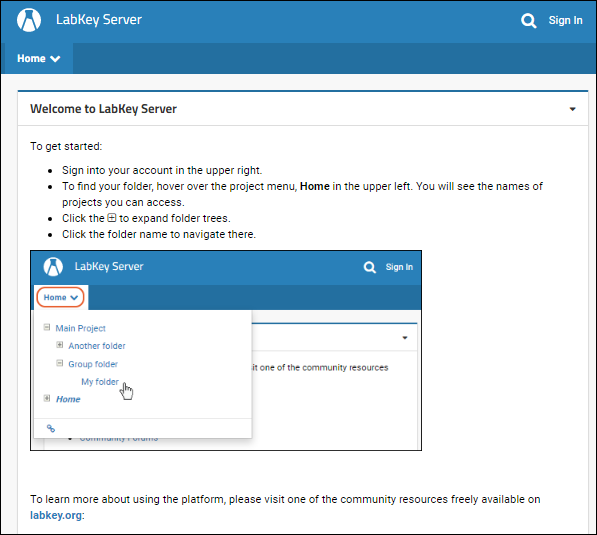
Note that this example assumes that permissions on your server allow "Guests" (anyone not logged in) to see the home page of your site. This is by no means a requirement. If your home page is only visible to users who have already logged into their accounts, you will want to remove the first bullet point from the wiki.
To add this to your server's home page, follow these steps:
- On your server's home page, open the "default" wiki for editing.
- Paste the following above the existing content:
<p>To get started:</p>
<ul>
<li>Sign into your account in the upper right.</li>
<li>To find your folder, hover over the project menu, <strong>Home</strong> in the upper left. You will see the names of projects you can access.</li>
<li>Click the <span class="fa fa-plus-square-o"></span> to expand folder trees.</li>
<li>Click the folder name to navigate there.</li>
</ul>

<p><img alt="Navigation Help" src="useHomeMenu.png"></p>
<br /><br />
- Scroll down and uncheck the box for Show Attached Files. Otherwise the name of the file will be displayed at the bottom of the wiki.
- Click Attach a file and select the "useHomeMenu.png" image from the unzipped bundle you downloaded.
- Scroll back up and click Save & Close.
The home page will now direct new users to log in and find their working folder. For large groups of new users with access only to a main project that is not "home" you can use the
below suggestion to show a special button only to those users.
Button Quick Links Home Page
For a graphical home page, offering buttons for quick links to commonly used resources anywhere on your server, you can add an interface similar to that provided on the
LabKey Support Site home page.
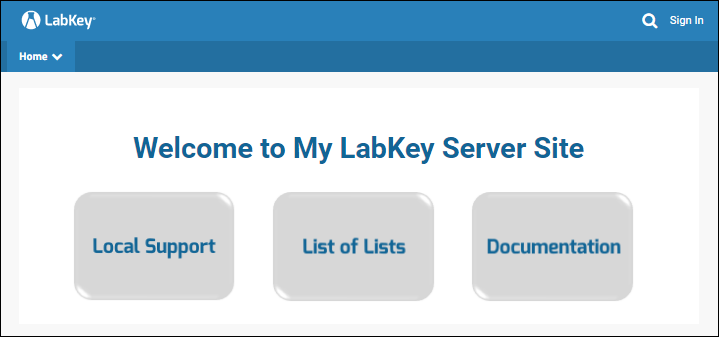
Decide which resources you want to link to, and what button images to use. In this example, we use some simple text buttons and link to different types of resources:
- One elsewhere on the local server: the local "Support" subfolder. Users can also reach this location using the header menu.
- One local to the home project: in this case a list of the lists defined there. Even if none are defined, you can see the empty list where they would be.
- One outside your server, showing a full path URL, in this case to the LabKey documentation.
Any URL on your server can be substituted for these links, using the patterns shown.
- In the home project, create a new wiki named "homePage" or any other name you choose.
- Choose HTML as the type.
- Give the page any title you like. You can choose later whether to show this title or not.
- Paste the following content onto the source tab:
<div style="margin: auto; background:white; max-width:850px;">
</br>

<table width="90%" cellspacing="30" cellpadding="0" border="0" style="margin:10px auto; border-collapse: separate;
    border-spacing: 20px;">
    <tr>
        <td colspan="3" style="text-align:center;font-size:36px;font-weight:bold;color:#116596;">
	     Welcome to My LabKey Server Site
        </td>
    </tr>
    <tr>
        <td>
            <!-- Go to a resource in a different folder -->
            <a href="./support/project-begin.view?" title="Get started or find support resources." target="_blank">
                <img width="95%" src="localSupport.png" alt="Local Support" />
            </a>
        </td>
        <td>
            <!-- Go to a resource in the current folder -->
            <a href="list-begin.view?" title="See the list of lists available here." target="_blank">
                <img width="95%" src="lists.png" alt="Lists"/>
            </a>
        </td>
        <td>
            <!-- Go to an outside website/full URL -->
            <a href="https://www.labkey.org/wiki/Documentation/page.view?name=default" title="Go to the LabKey Documentation." target="_blank">
                <img width="95%" src="documentation.png" alt="LabKey Documentation"/>
            </a>
        </td>
    </tr>
</table>
- Scroll down, uncheck the box to Show Attached Files (so that their names won't be listed below your content).
- Attach these three images from the downloaded bundle:
- "localSupport.png"
- "documentation.png"
- "lists.png"
- Scroll back up and click Save & Close.
Once you have enabled this example, change the buttons, link destinations, text hover messages, etc. to suit your needs on your own site. A few additional buttons are provided in the Resources bundle, and you can easily make more with any image editor.
You will now have a wiki you can use as your main landing page. To display it, follow these steps:
- In > Page Admin Mode:
- Add a wiki web part.
- Because this folder already contains a "default" page, it will be shown in your new web part.
- Select > Customize on the wiki web web part you want to show your new page.
- If you like, select > Hide Frame to hide the web part frame.
- If you want to remove the other web part showing the "default" page, select > Remove From Page. This will stop showing it, but the underlying page will remain available if you later decide to show it again.
- Click Exit Admin Mode.
You now have a new button-based home page to assist your users.
Add a Compound Search Bar
To add a compound search bar, similar to that provided on the
LabKey Support Site home page, you can add some additional HTML below the button-based page content listed
above.
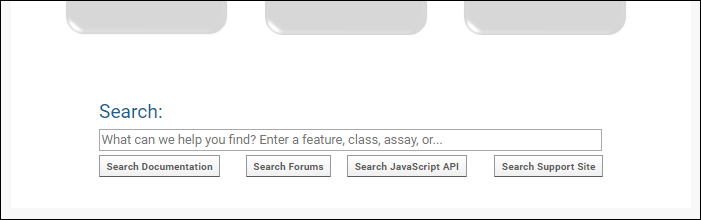
This search bar offers four different searches given the same user input:
- Search Documentation: Builds a URL to search the /Documentation project on your local server. If one does not exist, you must create one or edit the URL built for this search option.
- Search Sample Manager Help: The URL for this button searches the "/SampleManagerHelp" project.
- Search JavaScript API: This uses google to search for your string in the LabKey JavaScript API docs.
- Search Support Site: This creates a site wide search for your term, opening the advanced search panel for the user to be able to refine it.
Paste the following below the closing </table> line of the wiki displaying the buttons. You might also choose to copy that wiki and add this content in a new one to give yourself more display options.
<!-- Search Region -->

<form name="SearchReqForm">
    <table cellspacing="0" cellpadding="5" border="0" style="width:580px;margin:50px auto 0px auto">
        <tr>
            <td colspan="4"><span style="text-align:center;font-size:24px;color:#116596;">Search:</h2></td>
        </tr>
        <tr>
            <td colspan="4"><div id="errorTxt" style="font-style:italic;display:none;color:red"></div></td>
        </tr>
        <tr>
            <td valign="top" colspan="4">
                <input class="lk-docs-search-input" type="text" name="Term" placeholder="What can we help you find? Enter a feature, class, assay, or..." style="margin: 5px auto;
font-size: 16px;" size="80">
            </td>
        </tr>
        <tr>
            <td align="left" valign="top">
                <span class="labkey-button lk-docs-btn-search" style="font-size:12px;" data-search="docs">Search Documentation</span>
            </td>
            <td align="center" valign="top">
                <span class="labkey-button lk-docs-btn-search" style="font-size:12px;" data-search="samplemanager">Search Sample Manager Help</span>
            </td>
            <td align="center" valign="top">
                <span class="labkey-button lk-docs-btn-search" style="font-size:12px;" data-search="js">Search JavaScript API</span>
            </td>
            <td align="right" valign="top">
                <span class="labkey-button lk-docs-btn-search" style="font-size:12px;" data-search="site">Search Support Site</span>
            </td>
      </tr>
    </table>
</form>
<br />
<br />
</div>

<!-- Implementations for the search buttons follow. These build locally functional URLs based on where resources are on LabKey's support site and will need adjustments. -->

<script type="text/javascript" nonce="<%=scriptNonce%>">

    (function() {

        function init($) {

            // bind search input
            $('.lk-docs-search-input').keypress(function(e) {
                if (e.which === 13) {
                    searchClientAPI('docs');
                    return false;
                }
            });

            // bind search buttons
            $('.lk-docs-btn-search').click(function(e) {
                var search = $(e.target).data().search;
                if (search) {
                    searchClientAPI(search);
                }
            });
        }

        function searchClientAPI(searchType)  {
            var form = document.getElementsByName('SearchReqForm')[0];
	    var err = document.getElementById("errorTxt");
            err.innerHTML = "";

            if (form.Term.value == '') {
                err.innerHTML += "You must enter a search term first.";
                document.getElementById("errorTxt").style.display = "block";
                return;
            }
	    else if (form && form.Term.value && searchType) {
                var q = form.Term.value;
                var _type = searchType.toLowerCase();

                if (_type === 'docs') {
                    window.location = LABKEY.ActionURL.buildURL('search', 'search', '/Documentation', {
			category: 'Wiki',
                        q: q,
                        scope: 'Folder'
                    });
                }
                else if (_type === 'samplemanager') {
                    window.location = LABKEY.ActionURL.buildURL('search', 'search', '/SampleManagerHelp', {
                        category: 'Wiki',
                        q: q
                    });
                }else if (_type === 'js') {
                    window.location = 'http://www.google.com/search?hl=en&lr=&q=' + q +
                            '+site%3Ahttps%3A%2F%2Fwww.labkey.org%2Fdownload%2Fclientapi_docs%2Fjavascript-api%2F&btnG=Search&aq=f&oq=&aqi='
                }
                else if (_type === 'site') {
                    window.location = LABKEY.ActionURL.buildURL('search', 'search', 'home', {
                        q: q,
                        showAdvanced: true
                    });
                }
            }
        }

        LABKEY.requiresScript('internal/jQuery', function() { init(jQuery); });
    })();

</script>
Show Wikis Based on Permissions
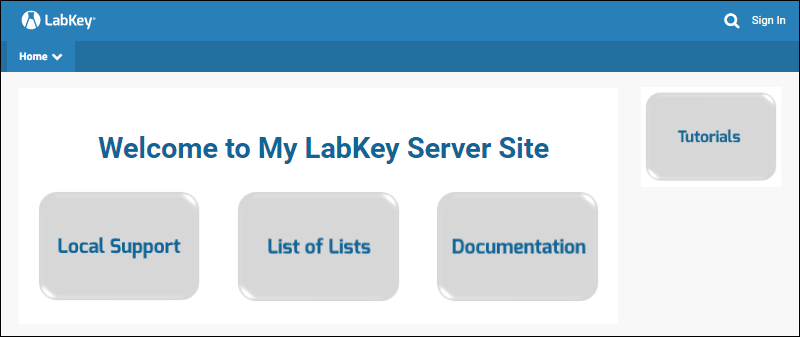
Wikis can be shown only to users with specific permissions on another container. You can use this to show additional information to administrators, or to create "easy click" buttons for users of specific projects that only show up for those users. This can be especially useful if you have groups of users who want a simple UI without these distractions.
For example, if you have a "/Tutorials" project on your server and grant only users doing training permission to read it, you can put a big clickable button right on the home page to go there, but not show that button to users without access.
- Create a wiki to show your button and create the desired visual. In this example we use one of the images we supply, but you might choose a logo or color that is meaningful to that project's users.
- Use any wiki syntax, but for maximum control of margins and display, choose HTML.
- The contents of the "Source" tab might read something like this, using one of the images we supply:
<a href="https://localhost:8080/tutorials/project-begin.view" rel="noopener noreferrer" alt="Click for the Tutorials."><img style="margin: 10px 10px;" src="tutorials.png"/></a>
- In page admin mode, add a new wiki webpart to the home page displaying this wiki. You might place it on the right to keep it "above the fold".
- Still in page admin mode, select Permissions from the web part menu.
- Required Permission: Choose "Read"
- Check Permission On: Choose the /Tutorials project.
- Click Save.
- You can opt to hide the web part frame for a "cleaner" look.
Now only users who can read that project will see an extra button to link them directly.
Set Up Support Folder
Every server has a built in link for users to get local help by selecting
> Support from the header.
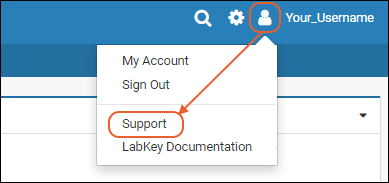
On this page, you may want to provide announcements, documentation, names of people to contact locally for assistance, etc. On the LabKey Support Site, we offer various options depending on the product(s) you are using. If you select
> Support right now, you will navigate there.
The default wiki provided on a new LabKey installation recommends some items to add and also tells you how you can redirect that link if you prefer to send users to another destination on the server.
Related Topics

