The notification system can be configured to send email alerts automatically when certain events occur. You could send daily or weekly updates, and notify interested parties of things like weight drops, clinical rounds, or compliance notifications. Notifications may also be disabled at the site level, following instructions belowClick the EHR Admin Page link on the Overview tab, then click Notification Admin. Specific alerts available may vary by center.The list of notification emails that can be enabled for an EHR system includes a brief description of when each will be sent, to whom, and why. Each can be individually enabled or disabled. You can also click to run each report within the browser for a preview of the information.
Disable Notifications at the Site Level
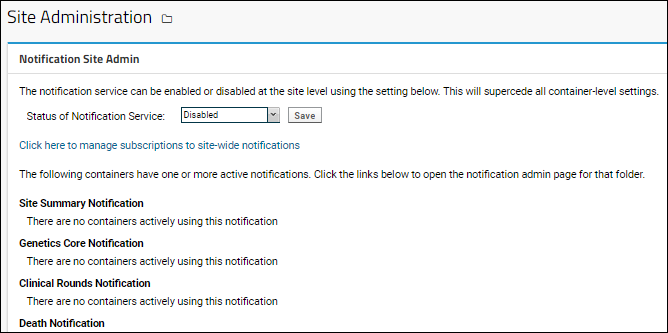
If desired, an admin can disable notifications at the site level. When disabled, the EHR Admin Notification page will warn the user that no emails will be sent. To disable (or reenable) notifications:
Select > Site > Admin Console.
Click Settings.
Click Notification Service Admin under Management.
Set the Status of Notification service.
Click Save.
You can also manage notification subscriptions using this page.
EHR Roles and Permissions
Video Overview
Folder-Level Roles
The following roles apply to users within an EHR system and are set at the folder level. An administrator manages the assignment of the correct roles to the appropriate users. Typically users will be grouped by functional area and the roles assigned to the groups rather than to individuals.
EHR Data Admin: Users with this role are permitted to make edits to datasets.
EHR Requestor: Users with this role are permitted to submit requests, but not to approve them.
EHR Request Admin: Users with this role are permitted to submit and approve request records. They cannot modify public data.
EHR Template Creator: Users with this role are permitted to create templates for data entry.
EHR Veterinarian: This role is used to track vets, and grants those users additional editing permissions. This role is used to populate the table ehr_lookups.veterinarians.
EHR Data Entry: This role is required in order to submit data into any EHR table; however, having this role is not sufficient for data entry. Per-dataset permissions must also be set through study admin, using the roles below.
EHR Clinical Entry: This role is used to track which users can view the core clinical entry forms.
EHR Surgery Entry: This role is used to track which users can enter surgeries.
EHR Labwork Entry: This role is used to track which users can enter labwork.
EHR Pathology Entry: This role is used to track which users can enter pathology data.
EHR Protocol Management: This role is used to grant the ability to manage IACUC protocols and associated data.
EHR Behavior Entry: This role is used to track which users can enter behavior data.
EHR Procedure Management: This role is used to track which users can modify procedure definitions.
EHR Location Management: This role is used to grant the ability to manage room and cage configuration.
EHR Housing Transfer Management: This role is used to grant edit rights to ehr.cage and housing tranfers. Note: the user will need table-level update permission on study.housing.
EHR Snomed Editor Role: This role is used to grant edit rights to SNOMED and associated tables.
Dataset-Level Roles
There is an additional set of roles that can be assigned at a dataset level via Manage Study Security, which control who is allowed to insert, update, and delete records. For the purposes of the descriptions below, "public data" means a record that has been saved in a "complete" state, meaning it needs no further review or approval and is considered to be part of the animal's record.
EHR Requestor: Users with this role are permitted to submit requests, but not approve them.
EHR Basic Submitter: Users with this role are permitted to submit and edit non-public records, but cannot alter public ones.
EHR Full Submitter: Users with this role are permitted to submit and approve records. They cannot modify public data.
EHR Full Updater: Users with this role are permitted to submit and approve records. They can also update public data, but are not admins.
EHR Request Admin: Users with this role are permitted to submit and approve request records. They cannot modify public data (completed records).
EHR Data Admin: Users with this role are permitted to make any edits, inserts, and deletes in datasets.
Individual centers may also add additional roles as necessary.
Data Entry Permissions
Access to data entry forms is controlled using per-dataset permissions. Users can be individually granted permission to the necessary forms, or you can use project-level groups to make it easier to assign by role and area.
To set dataset level permissions from within the EHR system:
Click Manage EHR Study from the overview panel.
Click Manage Datasets.
Click Manage Dataset Security.
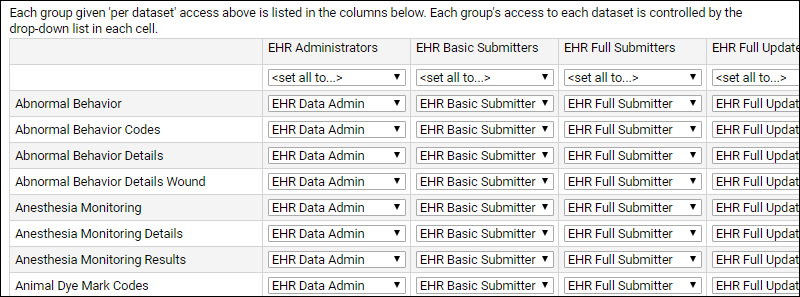
You will see all the groups you have defined and can select which ones should have per-dataset permissions. Note that in the following images, the groups are named by role. Your group names will likely differ and be based on function and/or area of work for subsets of users.
Scroll down to see all the datasets in the study; each group you selected to have per-dataset permissions will have a column.
Use the dropdowns in each cell to identify what permission that group should have on that dataset.
Learn more about setting permissions in this topic.
Restrict Data Access by Functional Area
Assigning users to project groups can be used to restrict access to data entry for chargeable items outside a given user's area of work, or core. Forms and dropdown options are filtered based on the group memberships configured by the administrator.To control access, first create the user groups you need via > Folder > Permissions > Project Groups. You might create one for each functional area.Next, in the Finance web part, use Assign Chargeable Item Category Access to add an entry for each category of charge items and which groups should be able to see and use it. Shown here, a group named "VM Supplies" will be able to charge items in the "Viral Diagnostics" category.Use the Allow All Categories? checkbox to grant a group access to all categories at once.
Colony Management
Track birth records, cagemate history, death records, housing history, potential parents, and produce reports about these and other aspects of colony management.
Security Roles Reference: Descriptions of each role and the powers each role grants to a user. The roles described here are generic and apply across all instances of the server. Application-specific roles are not covered. See the list above for EHR-specific roles.- Electronic Health Records (EHR)
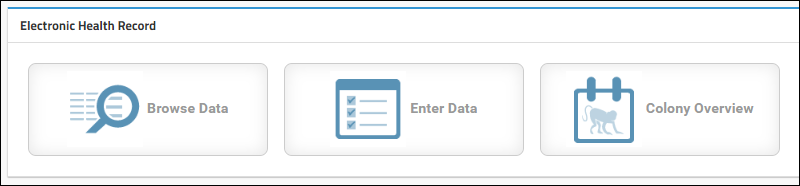
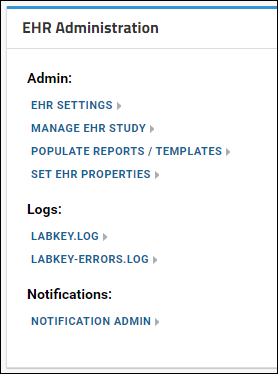 From the Overview tab, click the EHR Admin Page from the links panel to see the options available for your center:
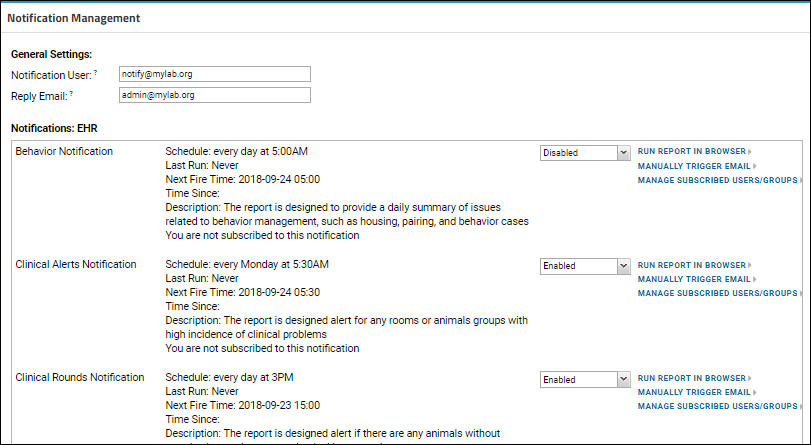 The list of notification emails that can be enabled for an EHR system includes a brief description of when each will be sent, to whom, and why. Each can be individually enabled or disabled. You can also click to run each report within the browser for a preview of the information.
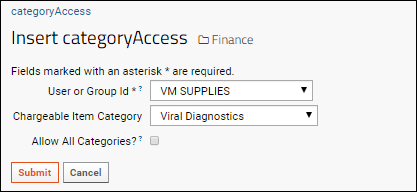 Use the Allow All Categories? checkbox to grant a group access to all categories at once.

