This topic describes the process for issuing pull requests to assist external client developers in better understanding the procedures LabKey follows.
Pull Requests
A pull request is simply a request to merge to a branch. This request can be tracked, documented, and tested before actually being merged giving a chance for code review, feedback, and triage. We currently use GitHub to host our repositories so it is recommended pull requests be made through the GitHub UI. The following link gives an overview on the GitHub site.
Issue a Pull Request
We incorporate pull requests into our feature development cycle. Each story on the scrum board that involves new code in a git repository should receive a task labeled 'Test sign-off and pull request sent'. This task is unblocked once all the following criteria are met:
Criteria to Issue Pull Request
All of the following conditions
must be met before a pull request can be issued.
- New development is complete
- Bug Fixing is complete (not including issue verification)
- Automated and Buddy testing is complete (tracked on Scrum board)
- Merges from the base branch have been made as appropriate.
To issue a pull request, perform the following steps.
Pull Request Steps
Note: should be performed by the primary developer on a branch, as they will be considered the "Author" of the pull request.
- 1. Be sure all local commits are pushed to the remote repository.
- 2. Go to https://github.com/LabKey/<repository name>/.
- 3. Select the branch you'd like to merge from the branch: drop-down.
- 4. Click on Pull Request. This will take you to a page 'Open a pull request'.
- 5. Set 'base' to the branch you want to merge into. This is typically 'develop'. Set 'compare' to the branch you want to merge. This is typically your feature branch.
- 6. Set the Title. It should match the title of the project or be a broad description of the work being done.
- Example title: 'Spec ##: Shared Reports'.
- 7. Fill out the Pull Request template. The suggested areas (rationale, related pull requests, and changes) are useful as an overview of what is the in this pull request. They may not all be relevant for all pull requests
- Example rationale: 'This allows for sharing reports between users'.
- Example changes: 'Create report sharing service and shared report view'.
- 8. Assign product and test code reviewers (based on scrumwise assignments). This can be done by clicking Reviewers .
- Note: if you are assigned to perform a code review, stop now and find somebody else to open the pull request. You can't review your own pull request.
- 9. Review changelist. If you see changes that are unrelated to your work or otherwise unexpected, it is likely that you are targeting the wrong branch or the branch was initially created off of the incorrect base branch.
- Note: if the branch was created incorrectly, you will need to cherry-pick or rebase the desired changes from your branch onto the correct base branch. This can be tricky and is not covered here.
- 10. If it all looks good then click Create Pull Request.
Once the pull request is created a couple of things will happen:
- Repository contributors and assigned reviewers will be informed of the pull request via email.
- Rolled-up difference of changes is available for code review.
Labeling Pull Requests (Optional)
There are a set of standard labels available to assign to pull requests that indicate their state in the process. If, when creating your pull request, you do not see these labels, please add them to the repository.
- Code review complete (#009800)
- issue verification complete (#0052cc)
- needs code review (#fbca04)
- needs issue verification (#e11d21)
- needs TeamCity test review (#eb6420)
- TeamCity test review complete (#207de5)
To add labels, you need to go to: https://github.com/LabKey/<repository name>/pulls and click on
Labels next to the search box.
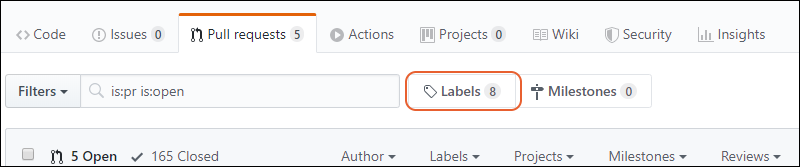
Once the labels are available, you may use them to indicate the status of your pull request. This is done using the "Labels" section on the right hand side of the pull request page.
Pull Requests from Forked Repositories
LabKey's continuous integration server, TeamCity, will build and validate appropriately named feature branches and send status checks to GitHub. This only happens for feature branches in LabKey managed repositories. For pull requests originating from external forks, somebody with write access must copy the feature branch to the LabKey repository for TeamCity to "see" it.
With a clone of the LabKey repository, one can copy the branch without modifying their local enlistment.
Note: The branch names do not need to match. In fact, you may need to push to the LabKey repository with a name that TeamCity will recognize.
For the following pull request:

A LabKey developer would run:
This is recommended for all externally originating pull requests and may be mandatory for repositories with stricter branch protection rules.
Code Reviewing Pull Requests
GitHub provides a nice view for looking at the rolled-up difference between the compare branch and the base branch. This is useful for providing one place to look rather than having to scan across multiple commits to figure out what the end result looks like. To start a review:
- Find the pull request. Options:
- From a notification email.
- From your pull request dashboard: https://github.com/pulls/review-requested
- From the module's pull request list: https://github.com/LabKey/<module>/pulls
- Begin your code review
- Request Changes or Approve the pull request
Learn more about code review in this topic:
Additional Commits after Pull Request
If you make additional changes after a code review has been submitted
(based on review feedback or otherwise) you should request a new code review from the relevant reviewer(s) using the
Re-request review button in the reviewers list.
Merging a Pull Request
Once the code in a pull request has met the following criteria, it can be merged:
- been tested to verify feature functionality or bug fix
- gone through code review
- had test results verified
- Code reviewers have approved changes
It is the responsibility of the person issuing the pull request to monitor and promote the status of the request and perform the merge.
Merge Options
GitHub offers several methods for
merging a pull request:
1. Merge
- This should be used if and only if merging from a protected branch, such as release or develop. It creates a single merge commit and retains all existing history. Disabled for most LabKey repositories.
2. Squash
- This should be used for merging all feature branches.This type of merge combines all of the commits into a single commit.
- Do not use the default commit message. The default message body will include every commit message from the feature branch, much of which is likely to be repetitive and uninformative if you commit frequently (as you should). The message for the squash commit should be a description of the end result produced. It will likely be longer than a standard commit message but shouldn't include information about fixed typos, code review feedback, and the like.
- Once merged, feature branches should be deleted, except under extraordinary circumstances. Follow-on work should be done in a new feature branch, created from the base branch (usually 'develop').
3. Rebase
- Do not use. Disabled for most LabKey repositories.

