Panorama provides a summary of all the data on this server acquired from each instrument. This
Instrument Summary also provides automatic links between data in Experiment folders and the QC folder(s) that contain data from the same instrument, making it quick to see how the instrument was performing at the time of acquisition.
Instruments Summary
The
Instruments Summary panel lets you see which instrument(s) acquired the data in a Skyline document. It is shown on the replicate page for a single Skyline document.

The summary lists, for each experiment in the folder:
- Nickname: A friendlier name for the instrument, if one has been set.
- Instrument Name
- Serial Number
- Start/End Dates for the experiment
- Number of Replicates
- QCFolders: If any QC folders exist for the instruments and experiment dates, there will be one or more links here to go to the folder, where you will see a combined view of experiment and qc plot data.
Click a link in the
Nickname or
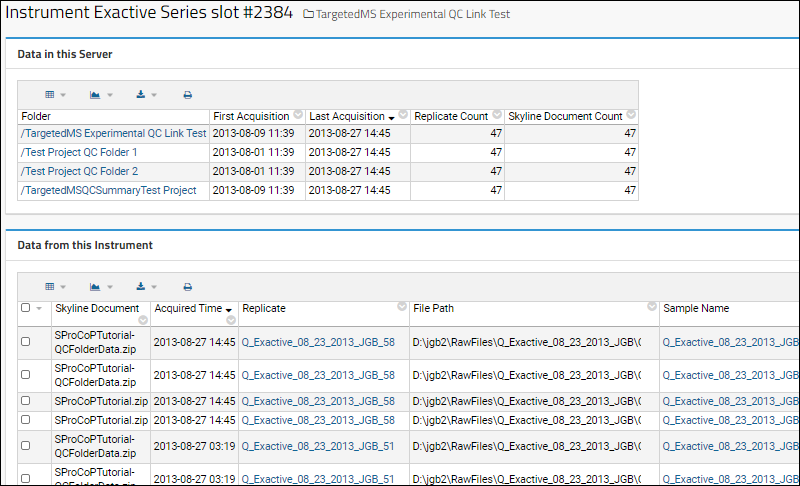
Serial Number column to see all data on this server acquired from this instrument. For example, clicking the "Exactive Series slot #2384" link in the image above:
Set an Instrument Nickname
Skyline captures an instrument's model name and serial number from the raw data files, but users typically don't know or remember these values day to day. Labs often use their own informal names instead, such as "Dora," or number a series of identical instruments, such as "QE 1" and "QE 2." Panorama lets you set a
nickname for an instrument so it shows up using the name your lab already uses, everywhere Panorama would otherwise show the model name and serial number.
On the instrument details page shown above, users with the Editor role or greater can set or update the nickname:
- Nickname: The friendly name to use for this instrument.
- Save in: The container to save the nickname in: the current folder, the project, or /Shared. This dropdown only lists containers where you have Update permission, and defaults to the highest level available to you.
Panorama looks for a nickname using the standard Shared, Project, then current folder scoping: a nickname saved in
/Shared applies across the entire server, one saved at the
project level applies to every folder in that project, and one saved in the
current folder applies only there. If a nickname is already defined for an instrument at a broader scope, you cannot set a different one for that instrument at a narrower scope; update it where it is already defined instead.
You can also map multiple model and serial number combinations to the same nickname. This is useful, for example, when a firmware upgrade changes the reported model name (such as "Exactive" becoming "Q Exactive") for what is really the same physical instrument. Set the same nickname for each variant, and Panorama treats them as synonyms: the instrument details page lists every model/serial number pair sharing that nickname, and other views that group data by instrument, such as the Replicate Summary in a QC folder, treat them as one and the same.
Users without Editor permissions can see an instrument's nickname if one is set, but won't see the controls for setting or changing it.
Linked Experiment and QC Folders
A
Panorama folder of type "Experimental Data" provides a repository of Skyline documents, useful for collaborating, sharing and searching across multiple experiments.
A
Panorama folder of type "QC" contains quality control metrics of reagents and instruments.
When there is QC data for the instruments used in the experiments, users will find it helpful to navigate directly to the QC data around the time of experimental data acquisition to assess the performance of the instrument at the time.
Navigate the Combined Information
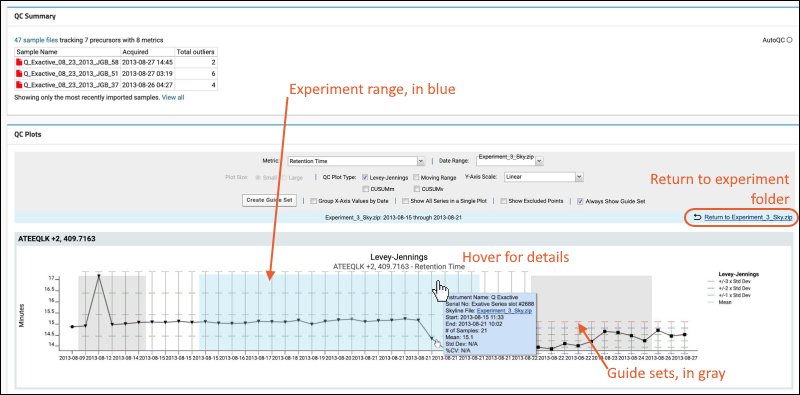
The experiment date range is shown in blue. Any guide sets applied or in the same time range will be shown in gray (overlapping sections will be a mixed darker shade).
In the blue bar above the plot, click
Return to Experiment to return to the experiment folder.
Related Topics

