Standard database authentication is accomplished using secure storage of each user's credentials in LabKey Server. When a user enters their password to log in, it is compared with the stored credential and access is granted if there is a match and otherwise denied.
Administrators may manually create the account using the
new user's email address, or
enable self-signup. The new user can choose a password and log in securely using that password. The database authentication system stores a representation of each user's credentials in the LabKey database. Specifically, it stores a cryptographically secure hash of a salted version of the user-selected password (which increases security) and compares the hashed password with the hash stored in the core.Logins table. Administrators configure requirements for password strength and the password expiration period following the instructions in this topic.
Configure Standard Database Authentication
- Select > Site > Admin Console.
- Under Configuration, click Authentication.
- On the Authentication page, find the section Login Form Configurations on the Primary tab.
- For Standard database authentication, click the (pencil) on the right.
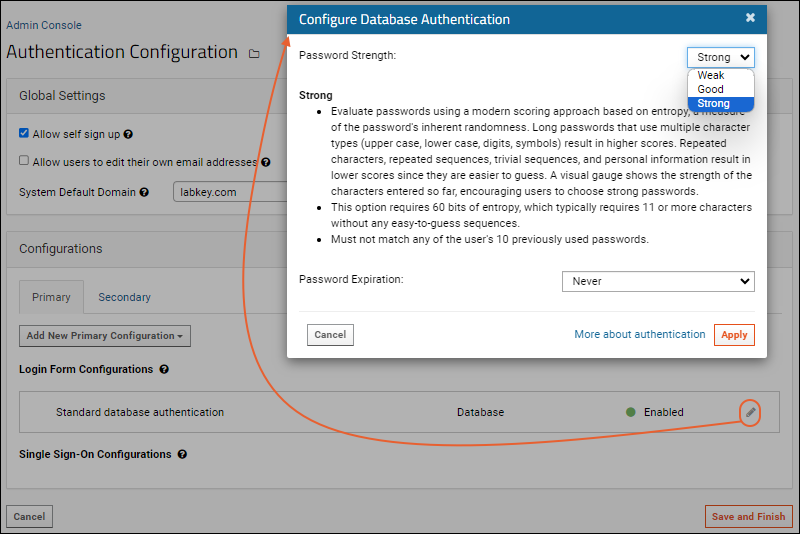
- In the Configure Database Authentication popup, you have the following options:
- Password Strength: Select the desired level.
- The rules for each type are shown, with additional guidance in this topic: Passwords.
- Password Expiration: Configure how often users must reset their passwords. Options: never, every twelve months, every six months, every three months, every five seconds (for testing).
- Click Apply.
- Click Save and Finish.
For details on password configuration options see:
Note: these password configuration options only apply to user accounts authenticated against the LabKey authentication database. The configuration settings chosen here do not effect the configuration of external authentication systems, such as LDAP and CAS single sign-on.
Set Default Domain for Login
If you want to offer users the convenience of automatically appending the email domain to their username at log in, you can provide a default domain. For example, if you want to let a user with the email "justme@labkey.com" log in as simply "justme". You would configure the default domain:
- Select > Site > Admin Console.
- Under Configuration, click Authentication.
- Under Global Settings, set the System default domain to the value to append to a username login.
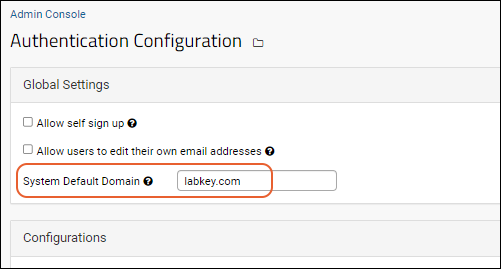
With this configuration, the user can type either "justme@labkey.com" or "justme" in the
Email box at login.
Related Topics

